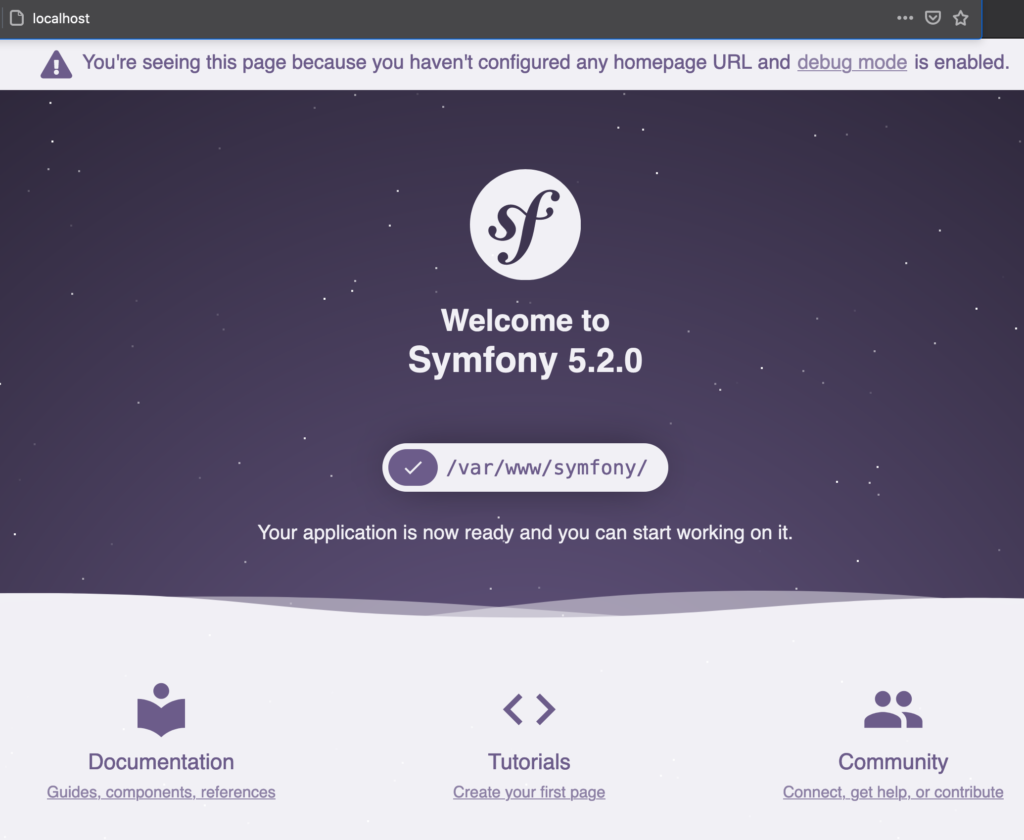
This article contains all the steps necessary to create a Symfony 5 project with docker-compose, nginx and PHP 7.4.
File structure
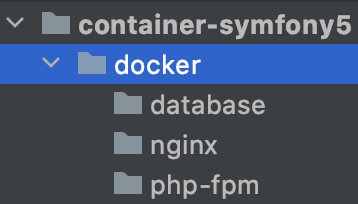
To start, we are going to need a docker folder that will contain all the necessary folders for each container. For our example, we will use nginx, php as well as MariaDB
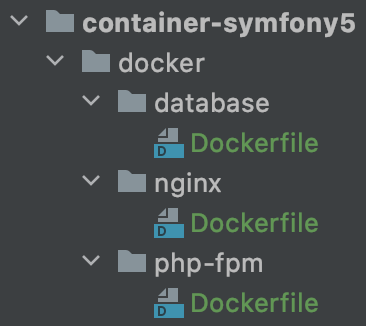
Once this is done, we add the Dockerfiles to create our structure.
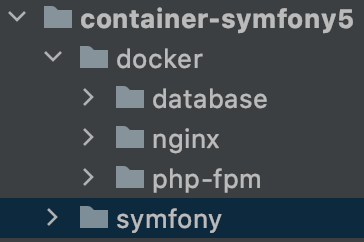
Now it is necessary to create the folder that will contain the Symfony code.
For this, in the terminal, the following command imports all the desired files. In this example I create the folder “symfony”
symfony new symfony --full --no-git
By using –no-git, the Symfony git repository will not be configured and it is possible to add the files to your repository without any problems.
Starting the Dockerfiles
Using alpine versions allows you to have all the necessary features without the superfluous.
Database folder
Edit the Dockerfile in the database folder
FROM mariadb:latest

CMD ["mysqld"]

EXPOSE 3306
FROM: tells Docker which image to use, in the format repository:version
CMD: indicates which command it should run at startup. In this example, it starts the database server
EXPOSE: indicates which ports should be visible on Docker’s internal network. Other containers can use this information to connect to it.
In the nginx folder
The Dockerfile in the nginx folder
FROM nginx:alpine

CMD ["nginx"]

EXPOSE 80 443
In the php-fpm folder
FROM php:fpm-alpine

RUN docker-php-ext-install pdo_mysql

CMD ["php-fpm"]

EXPOSE 9000
In order to use a database, we also install the pdo_mysql extension.
Creating the docker-compose file
At the root of the docker folder, create a file named docker-compose.yml. It is in this one that we configure and connect all the containers together.
version: '3.8'

services:
  php-fpm:

  nginx:

  database:
The Build context
In order to reach the other containers, it is necessary to define the build context with a path relative to it. Like this:
services:
  database:
    build:
      context: ./database
Setting up the database
For the database, certain attributes are mandatory: the root password as well as a database name.
It is in the environment section that one can pass variables to Docker. In ours: the name of the database, the password as well as a user for example. In our example, this looks like this:
database:
  build:
    context: ./database
  environment:
    - MYSQL_DATABASE=symfonydb
    - MYSQL_USER=user
    - MYSQL_PASSWORD=secret
    - MYSQL_ROOT_PASSWORD=docker
Configuration of php-fpm
By default Docker cannot see our files or access them. To do this we use the volume section in our docker-compose.yml file
php-fpm:
  build:
    context: ./php-fpm
  volumes:
    - ../symfony:/var/www/symfony
the format is – host:container
Configuration of the nginx server
For the nginx server, file access is also necessary
nginx:
  build:
    context: ./nginx
  volumes:
    - ../symfony:/var/www/symfony
Unfortunately this is not enough to run a server, we also need to expose ports and provide configuration files.
Exposing ports
The ports section allows to define which ports should be accessible from our machine. For nginx it is 80 and 443
nginx:
  build:
    context: ./nginx
  volumes:
    - ../symfony:/var/www/symfony
  ports:
    - "80:80"
    - "443:443"
By default, nginx only allows you to load HTML files. For Symfony we need php-fpm.
Configuration files
To start we are going to need new configuration files
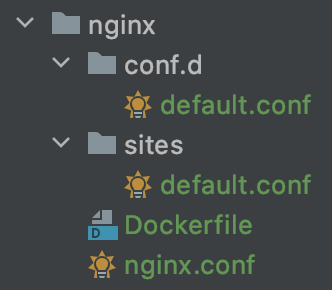
As our php-fpm service is in its own container, we need to tell Nginx where to find it. In the conf.d/default.conf file just add these lines
#conf.d/default.conf

upstream php-upstream {
    server php-fpm:9000;
}
Then in the sites folder, we can create the configuration file needed for Symfony. This is a variant of the one found on the Symfony website.
#sites/default.conf

server {

    listen 80 default_server;
    listen [::]:80 default_server ipv6only=on;

    server_name localhost;
    root /var/www/symfony/public;
    index index.php index.html index.htm;

    location / {
         try_files $uri /index.php$is_args$args;
    }

    location ~ ^/index.php(/|$) {
        fastcgi_pass php-upstream;
        fastcgi_split_path_info ^(.+.php)(/.*)$;
        include fastcgi_params;

        fastcgi_param SCRIPT_FILENAME $realpath_root$fastcgi_script_name;
        fastcgi_param DOCUMENT_ROOT $realpath_root;

        internal;
    }

    location ~ .php$ {
        return 404;
    }

}
In the file we can see fastcgi_pass php-upstream; which corresponds to our container; it is the reference to the one created in conf.d/default.conf
Now we also need to change the nginx.conf configuration file
#nginx.conf

user  nginx;
worker_processes  4;
daemon off;

error_log  /var/log/nginx/error.log warn;
pid        /var/run/nginx.pid;

events {
    worker_connections  1024;
}

http {
    include       /etc/nginx/mime.types;
    default_type  application/octet-stream;

    access_log  /var/log/nginx/access.log;
    # Switch logging to console out to view via Docker
    #access_log /dev/stdout;
    #error_log /dev/stderr;

    sendfile        on;
    keepalive_timeout  65;

    include /etc/nginx/conf.d/*.conf;
    include /etc/nginx/sites-available/*.conf;
}
The two include lines configure nginx with the two other files created.
Now it is necessary to add all these files to the container by modifying the nginx section in docker-compose.yml
nginx:
  build:
    context: ./nginx
  volumes:
    - ../symfony:/var/www/symfony
    - ./nginx/nginx.conf:/etc/nginx/nginx.conf
    - ./nginx/sites/:/etc/nginx/sites-available
    - ./nginx/conf.d/:/etc/nginx/conf.d
  depends_on:
    - php-fpm
  ports:
    - "80:80"
    - "443:443"
Adding depends_on indicates that php-fpm should be started before nginx.
Final docker-compose.yml
When you put all the pieces together, the file looks like this:
version: '3.8'

services:
  php-fpm:
    build:
      context: ./php-fpm
    volumes:
      - ../symfony:/var/www/symfony

  nginx:
    build:
      context: ./nginx
    volumes:
      - ../symfony:/var/www/symfony
      - ./nginx/nginx.conf:/etc/nginx/nginx.conf
      - ./nginx/sites/:/etc/nginx/sites-available
      - ./nginx/conf.d/:/etc/nginx/conf.d
    depends_on:
      - php-fpm
    ports:
      - "80:80"
      - "443:443"

  database:
    build:
      context: ./database
    environment:
      - MYSQL_DATABASE=symfonydb
      - MYSQL_USER=user
      - MYSQL_PASSWORD=secret
      - MYSQL_ROOT_PASSWORD=docker
Then in the terminal in the docker folder:
docker-compose up
Then we can call the URL: http://localhost/
And voilà, your Symfony is ready: